Features
Every tool the field actually needs
Tracepoint is built around one idea: every photo belongs to a place. Here's everything that makes that work.
01
AI inspection report drafts
Turn the findings you captured into an inspection report draft in a full-screen editor. Tracepoint reads the labels, captions, locations, dates, and counts — never the photos themselves — drafts an observation for each finding with an optional FISP classification, and drops a per-finding plan locator so every point ties back to its spot on the elevation. Edit inline and export to an editable Word document. A first draft that saves the evening, not a professional opinion. Team (20/mo) and Business (100/mo).
Facade and restoration engineers turning a day of fieldwork into a written record.
AI inspection report drafts
Capture from prod: AI report editor — full-screen draft with per-finding plan locators and FISP classes
02
Takeoff — field markup to billable quantities
Calibrate a view once, then mark Count, Length, and Area on the real plan from your phone. Totals roll up per work item and split into entry-date batches so a billing pass sees what's new. Export as CSV, a printable PDF with a legend, or a Bluebeam-native PDF whose measurements Revu re-measures and edits as its own. Included on every plan.
Restoration and masonry contractors who bill from field quantities.
Takeoff — field markup to billable quantities
Capture from prod: Takeoff mode — Count/Length/Area tools with the running totals bar
03
Per-photo provenance + tamper-evident history
Every photo records who captured it, on what device, and how the device's clock compared to when it was uploaded — reachable straight from the photo, not buried in a queue. Each entry is written to a hash-linked history, and machine-generated content stays labeled as such. Your building's condition history reads as a record, not a folder of loose photos.
Firms that need their documentation to stay trustworthy long after the job closes.
Per-photo provenance + tamper-evident history
Capture from prod: Photo provenance panel — captured-by, device, and clock-vs-upload detail
04
Survey-callout markers + defect index
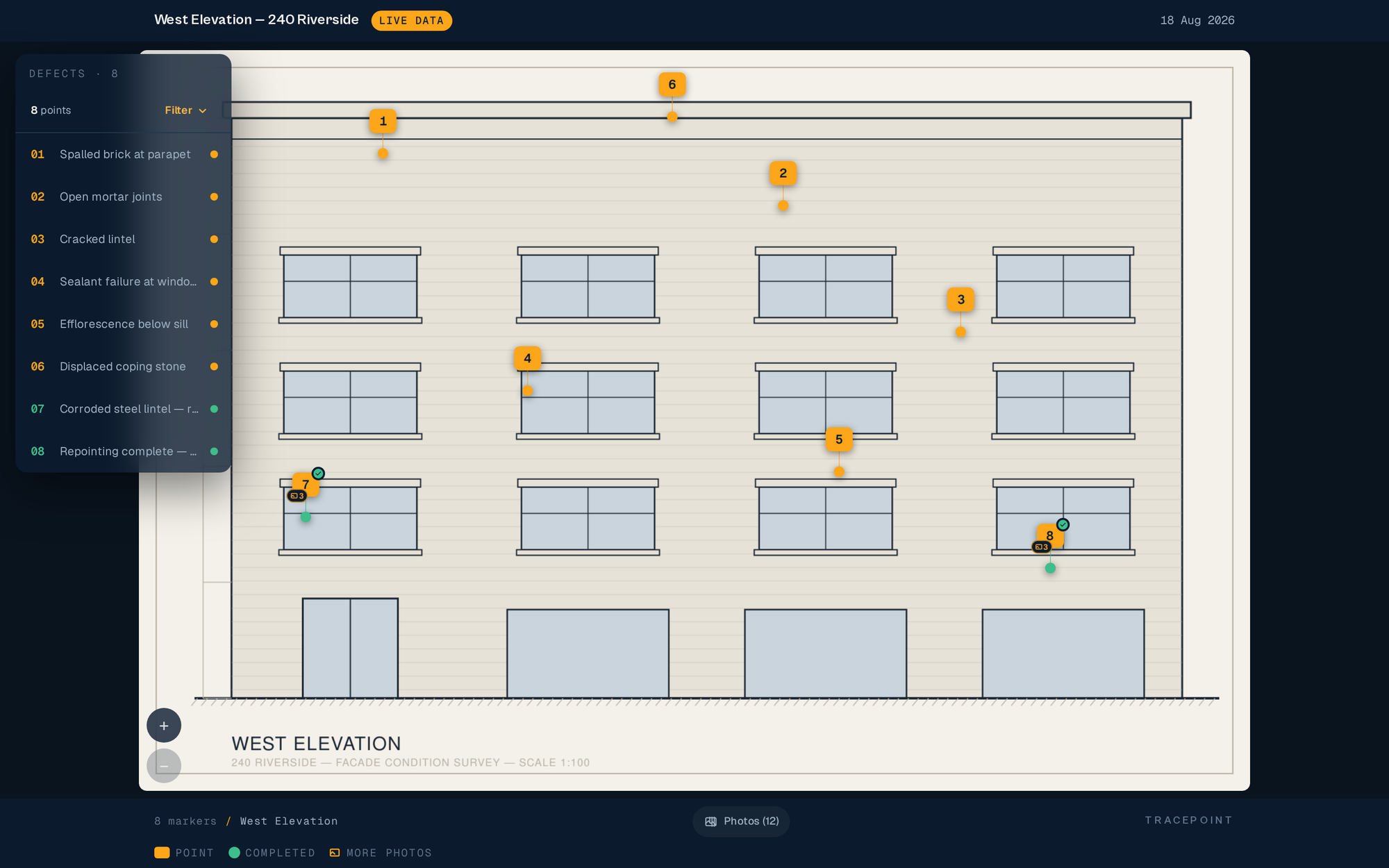
Drop numbered survey callouts anywhere on a plan or photo — a precise anchor dot at the exact point with an offset numbered tag, so dense facades stay readable. A live defect index lists every point beside the elevation; open one and its full photo timeline is right there.
Inspectors and field crews documenting findings across a large structure.
05
First-photo to completed comparison
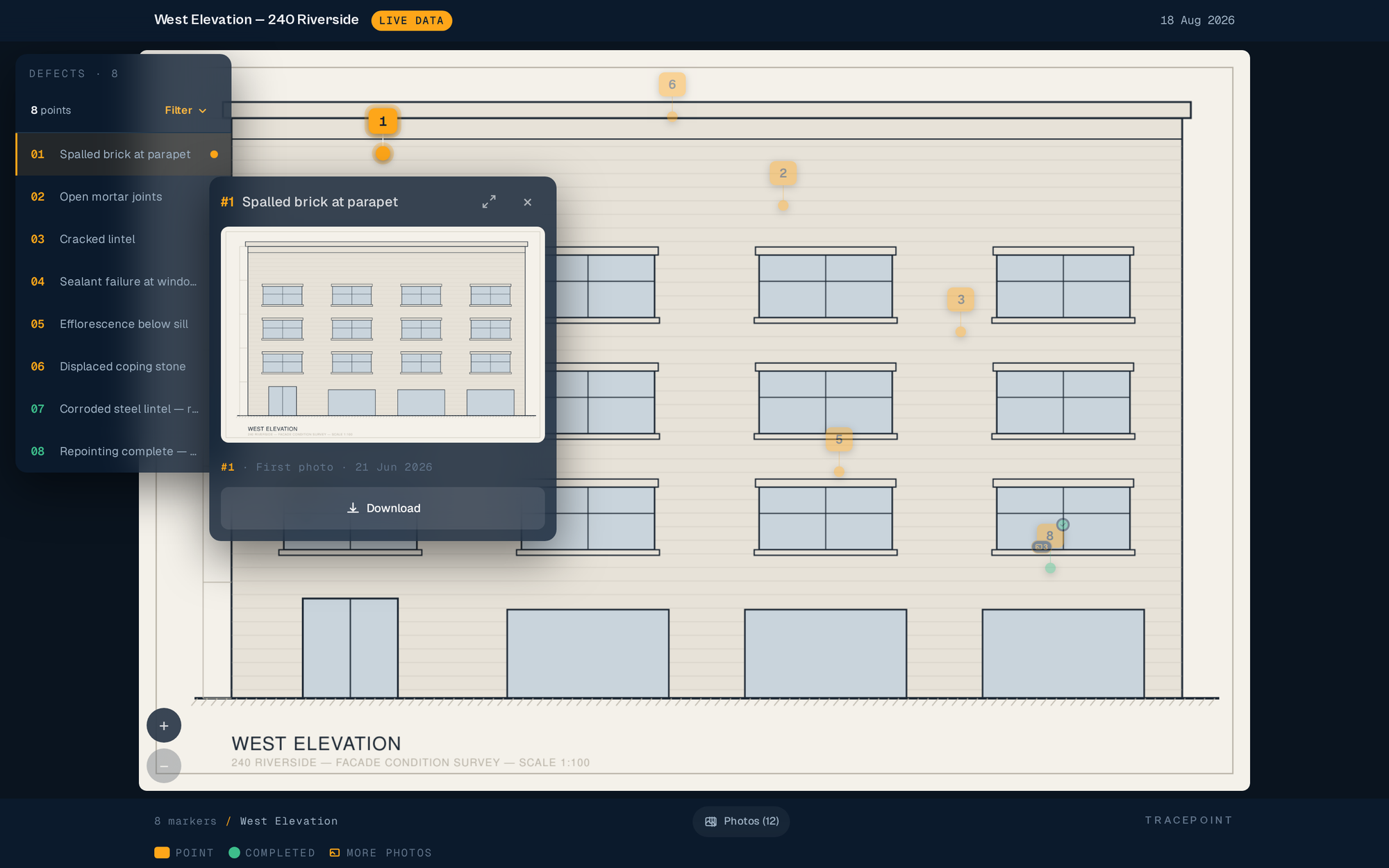
Open any marker and drag a slider between the first photo and the completed shot, with progress photos on the timeline in between. Report-grade labels and a marker-id-plus-date caption make the transformation read like a deliverable.
Contractors proving completed work to clients and owners.
06
Filtering on every surface — including phones
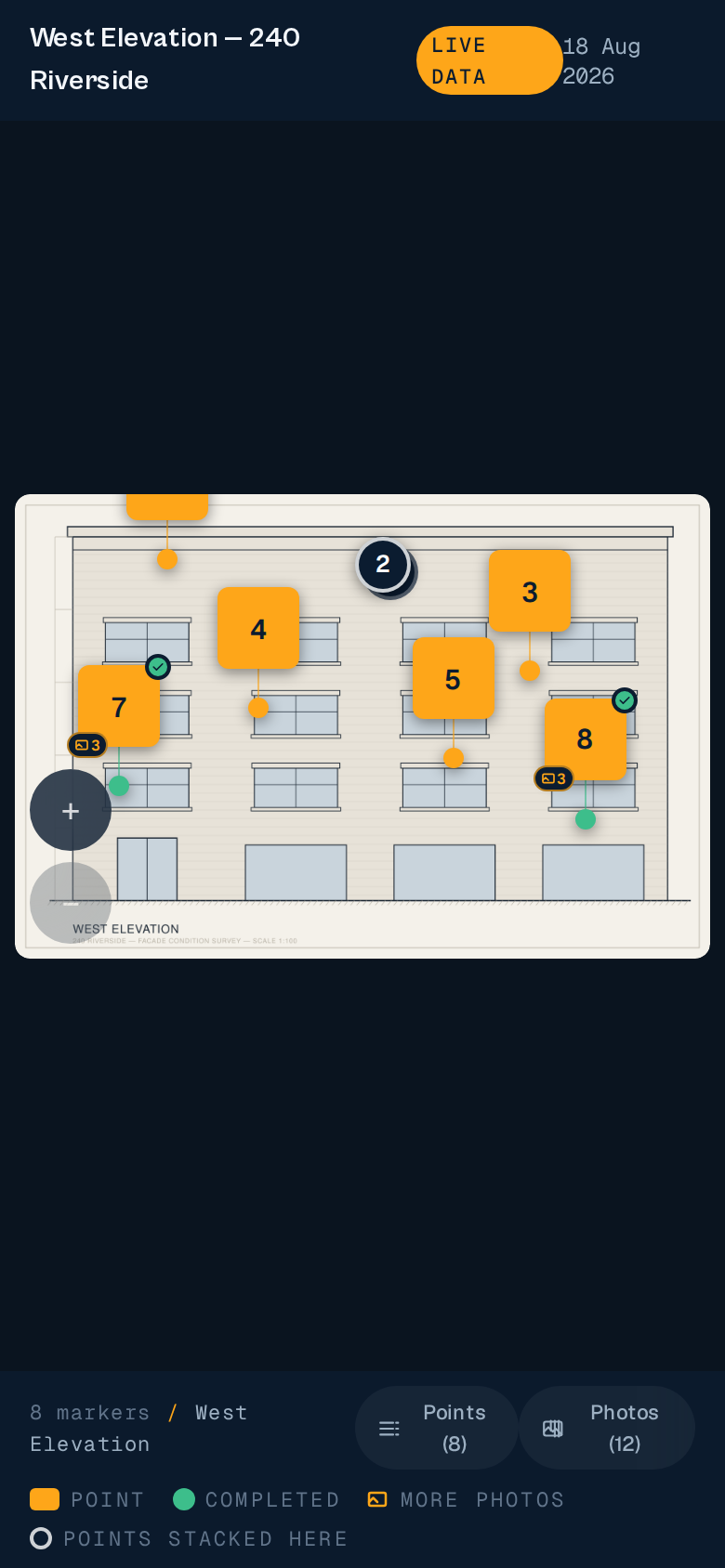
Filter markers and photos by author, discipline, and exact date (not just Today / 7 / 30) across the builder, the review queue, the marker index, and the published client viewer. Marker filtering works on the phone you're holding on site, and overlapping markers pull apart so you can tap the right one.
PMs and reviewers cutting a busy survey down to what they need to see right now.
07
Shot-list mode + voice captions
Walk the facade and tap each point you need to document — no photos required yet. Add a voice or typed caption per point. You leave with a numbered shot list instead of a mental note and a hope you didn't miss anything.
Engineers scoping a large inspection before the camera work begins.
Shot-list mode + voice captions
Capture from prod: Shot-list capture screen with numbered awaiting-photo points
08
Desk import for markers you already placed
Shot the job on a real camera? Import the JPEGs at the desk and attach them to the markers you already placed on site — Tracepoint orders by capture time and corrects for clock drift between the camera and the field. Adjust any pairing by hand before you commit.
Teams who capture on a DSLR and organize back at the office.
Desk import for markers you already placed
Capture from prod: Desk import screen matching imported frames to placed markers
09
In-app capture + GhostCamera
Capture inside the app with the first photo ghosted over the live camera, so the completed shot is framed from the same spot. Zoom in the ghost camera, retake on the spot, and back out cleanly. Repeatable angles make the comparison honest.
Field workers capturing completed photos that line up with the first.
In-app capture + GhostCamera
Capture from prod: In-app capture with the ghosted first-photo overlay and zoom
10
Review queue + inspector reel
Field captures never land straight on a marker — they queue for review. Clear the queue like a reel: inspect a capture, see the photo already on its marker, attach it, flag it, or discard it, without leaving the flow. Discarded captures stay visible and restorable, and the review banner points you back to what still needs a look. Team and up.
Admins and reviewers keeping a controlled record of what actually gets published.
Review queue + inspector reel
Capture from prod: Review queue with the inspector reel open on a capture
11
Annotations + tag a person
Mark up any photo directly — arrows, boxes, and notes baked onto the image. Tag a teammate on a photo and the reason you tagged them becomes the message they get. Call out the crack, the leak, the deficiency, and put it in front of the right person.
Engineers flagging specific conditions and looping in the right colleague.
Annotations + tag a person
Capture from prod: Photo annotation tools with a person tagged on a finding
12
Key plan overlay + highlight zones
Set a floor plan or site plan as your key plan and draw a highlight zone for each view. Viewers always understand where in the building a given image was captured.
Facade engineers and PCA assessors orienting reviewers across multiple elevations.
Key plan overlay + highlight zones
Capture from prod: Viewer key-plan thumbnail with a highlighted zone
13
Field-worker SMS links
Invite workers by name and phone number. They receive a text link, tap it, and land in a camera-first interface scoped to only their assigned area. No app install, no password — and field-worker links never count as a paid seat.
Crew leads coordinating multiple field workers across zones.
Field-worker SMS links
Capture from prod: Field-worker capture link on a phone screen
14
Enforced watermarking + download controls
Turn downloads off for sensitive projects, or leave them on. On Team and up, enforce a watermark on every download — a lock, not just a default someone can flip. On Business, stamp your own company logo onto every downloaded image.
Firms protecting proprietary inspection work product.
Enforced watermarking + download controls
Capture from prod: Share panel with enforced-watermark lock and download controls
15
Reports + notifications
A branded PDF is generated each night — a thumbnail map of the day's activity plus every photo added and marker updated — and emailed to your team. Per-user notifications cover new photos, comments, and review activity over email, browser, and app push, as a real-time alert or a daily digest.
Project managers who need a paper trail and a pulse without chasing it.
Reports + notifications
Capture from prod: A generated daily PDF report and the notification preferences
16
Public viewer (no login) + your data stays yours
Publish a project to a shareable link anyone can open on any device — gated or open, with a share link you can rotate. You own everything you upload; we never sell your data, and on any paid plan you can exclude your organization's content from AI model training entirely.
Anyone sharing findings with clients, owners, or AHJs — without giving up control.
Public viewer (no login) + your data stays yours
Capture from prod: Published public viewer with the share-link and access controls